How to Find What Pages Are Linking to a Page
Step-by-step methods for finding both internal links and external backlinks pointing to any page on your website.
As a business owner or SEO, you would want to know what pages link to your website pages.
There are two types of links between pages:
1. Internal links – from other pages within the same website. Internal links improve user experience and tell Google what pages you consider more important.
2. External links (backlinks) – from pages on other websites. Backlinks are one of the major Google ranking factors.
This guide will help you find both types and eliminate the guesswork of finding which pages link to a page.
Below, we’ll show you four proven methods to find a website’s links for two scenarios:
1. When you have admin access to the website.
2. When you don’t have admin access.
Each scenario requires a different approach and tools.
#1. Use Google Search Console
Google Search Console is a powerful, free tool for website owners to analyze their websites’ performance in Google search results. It can help users view and analyze their backlinks and internal link profiles.
Here’s what you need to do:
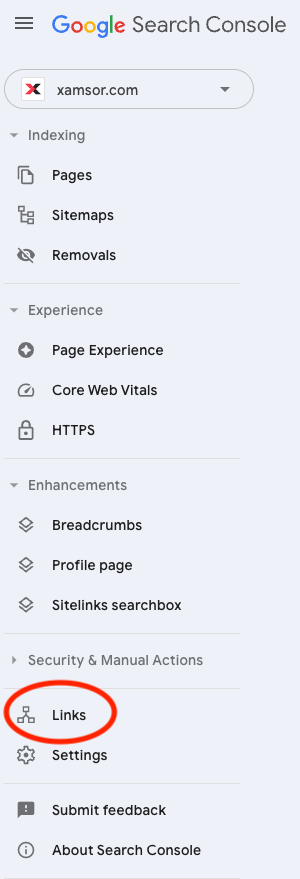
Click this link, which should land you in the right place inside GSC. Alternatively, log in to your Google Search Console dashboard and locate the “Links” button at the bottom of the left sidebar menu.
Here, you can find a full list of your website’s external and internal links and the total number of links.
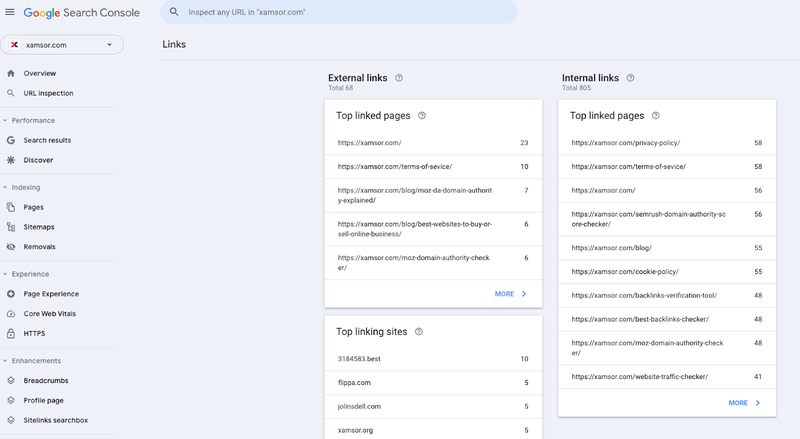
At the bottom of the internal links section is a “More >” button to view your website’s internal links, what pages they’re on, and even the number of internal links each page has.
Internal Links Report
Google Search Console also allows you to generate an Internal Links Report to view valuable data about your website’s internal link structure.
Go to Links report > Top internally-linked pages to get started.
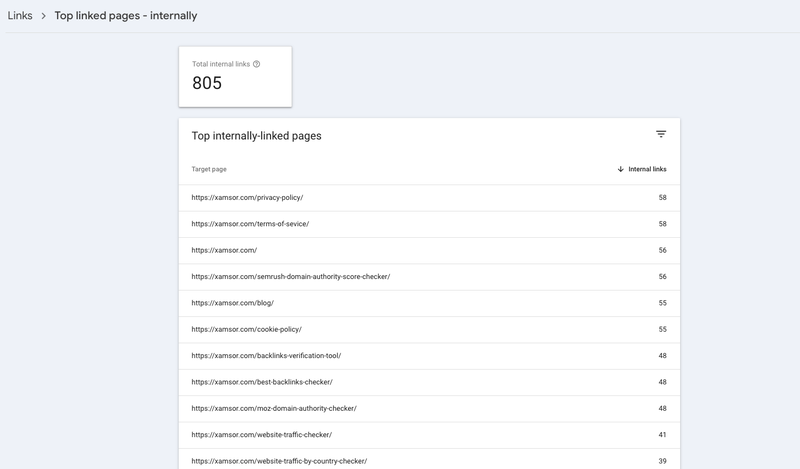
This will generate a list of URLs representing the pages linked to most within your website.
This reporting feature also lets you visualize which pages link to a specific page. To view this data, click on any target page URL from this list.
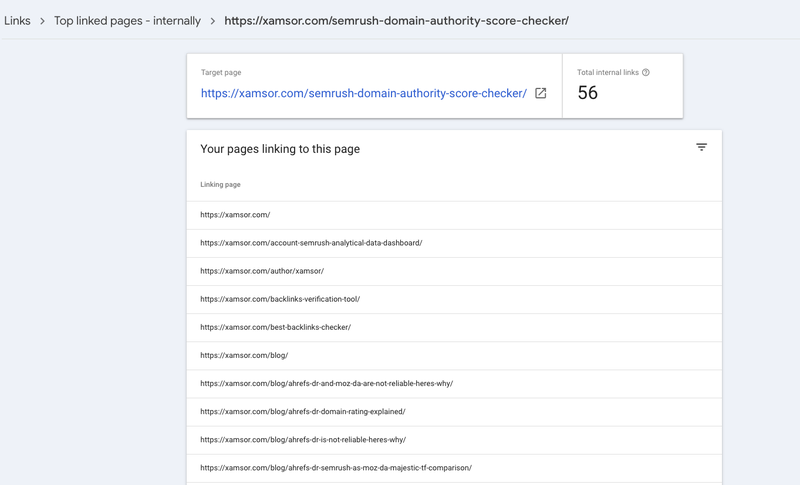
This shows you the total number of internal links on a page and the linking page.
However, Google Search Console may not be the best solution for everybody because it doesn’t report canonical and image links. It also won’t show you where links are on the page or what anchor text is used for an individual link.
External Links Report
The External Links Report displays all your backlinks from other sites and shows where they come from or which pages they point to.
Go to Top linked pages – externally to view your site’s backlinks.
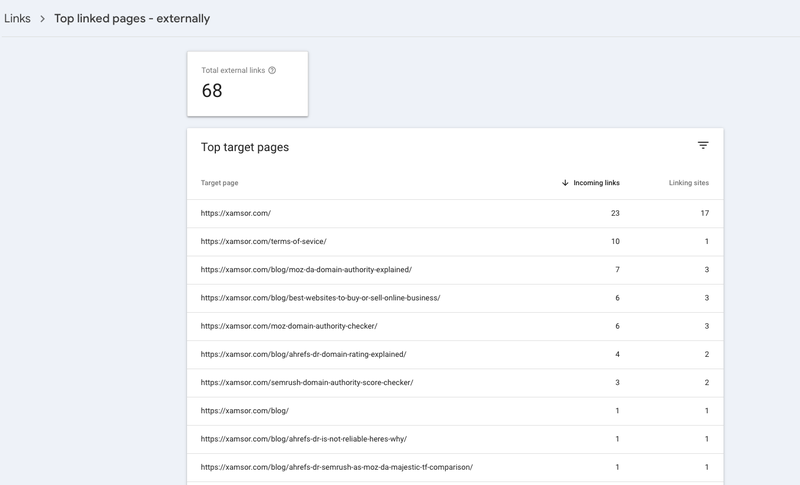
From here, you can see the total number of external links, a list of the top linking sites, linking pages, and target pages.
Click a target page to explore it further. You can view the number of total external links, the total sites linking to a page, and the top sites linking to this page.
#2. Use a Website Crawler like Screaming Frog
Screaming Frog is a more detailed tool that crawls your website to analyze link position. It’s free to use for your first 500 URLs, so if you’re new to technical SEO and on a budget, it’s worth trying out.
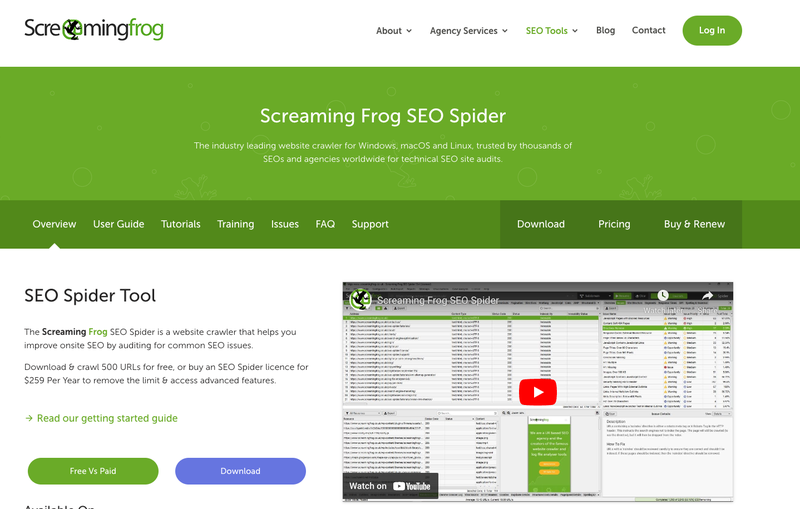
Larger websites with 500+ pages require the paid version. Otherwise, the tool will fail to crawl the entire website, providing incomplete data and preventing the proper identification of internal and external links.
Here’s a step-by-step guide to begin using the Screaming Frog SEO Spider.
Step 1: Download Screaming Frog SEO Spider
Download and install Screaming Frog SEO Spider to get started with the free version.
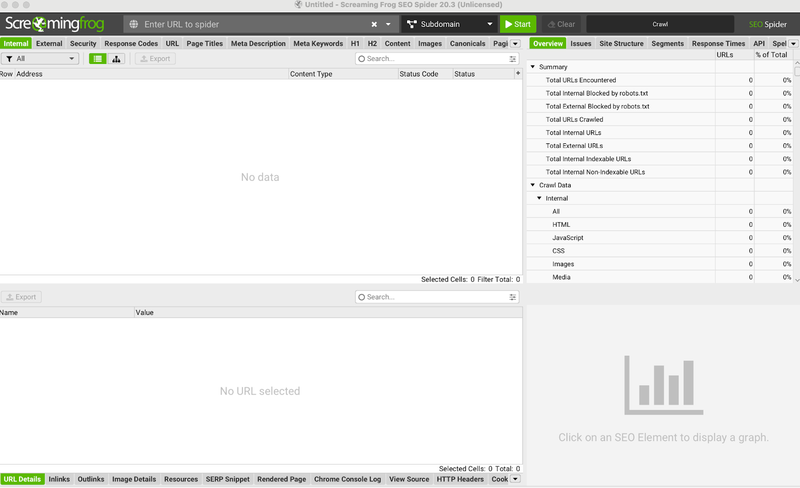
Step 2: Enter Your Website’s URL
Launch the application and enter the homepage URL of the website you want to crawl in the “Enter URL to spider” field. Click the “Start” button to begin the crawl.

Step 3: Analyze Specific Website URLs
Once the crawl is complete, you’ll see a list of website links available.
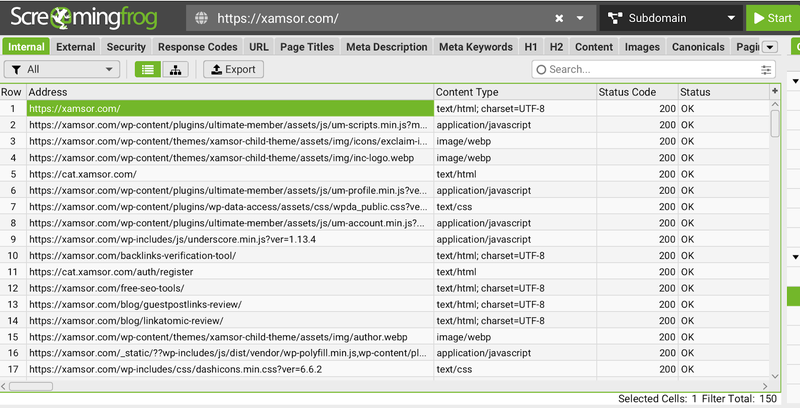
You can choose a link (or multiple links) to review them in more detail. Available data points for each link include:
- URL address
- Title
- Meta description
- H1 and H2s
- Word count
- Reading score
- Inlinks
Step 4: Locate the Inlinks Tab
To get more detail about the links on a page, navigate to the “Inlinks” tab in the bottom pane of the interface.
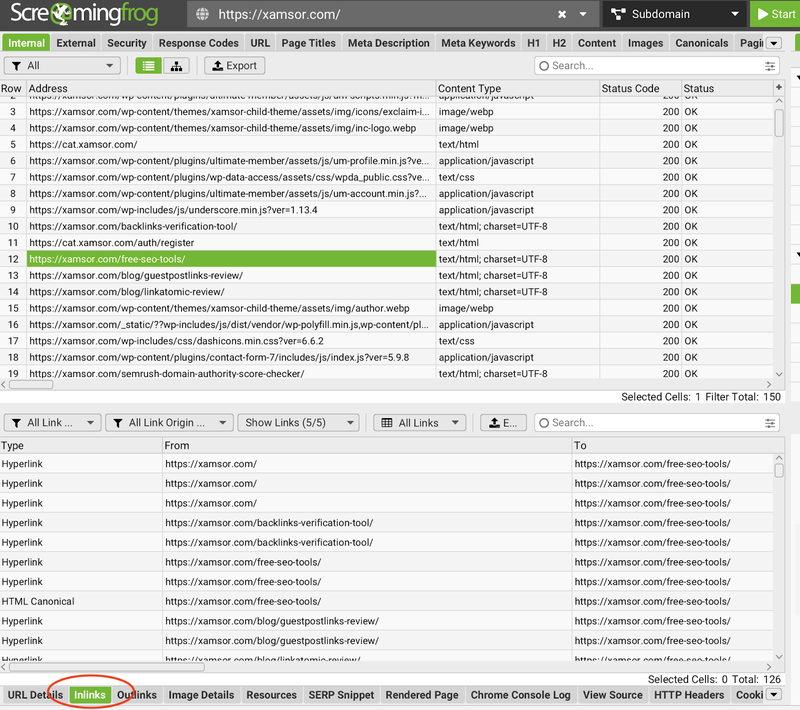
Step 5: Analyze Links Using Filters
The “Inlinks” tab lists all the pages on the site and the number of internal links pointing to each page.
With these filters, you can filter results by:
- Link type
- Where the link is coming from
- Where the link is pointing to
- Link anchor text
- Link path
- Link position (Navigation, Content, Footer, or Sidebar)
To make the most of this information, sort columns to identify patterns in your link structure (e.g., most common anchor text). You can also use filters to focus on specific link types or positions.
Step 6: Export Data
You can export data by clicking “Export” and selecting your preferred format (e.g., CSV, Excel).

The tool will ask you to select a location on your computer to save the file. After the download is complete, open the exported file for further analysis.
In my experience, exporting data from the Screaming Frog SEO Spider makes performing a more in-depth analysis of the site’s internal linking structure possible.
Other Advanced Screaming Frog Features
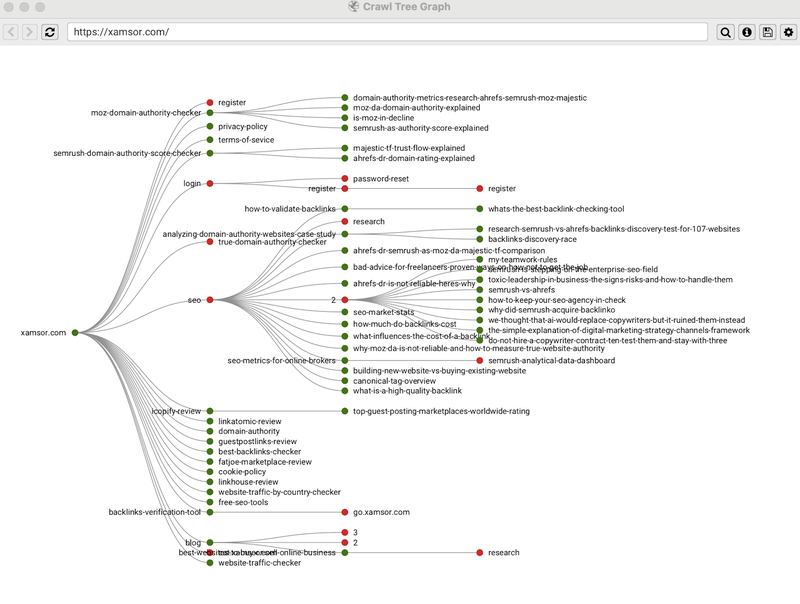
Digging into this data can be confusing, so Screaming Frog includes visualization features to understand link and site structure.
For example, the Crawl Tree Graph is how the SEO Spider crawled the site using the shortest path to a page. It displays the shortest path to a page from the start URL.
You can use this graph to see data points for each page, such as the number of inlinks and outlinks.
#3. Use an SEO Tool like Semrush
Semrush is a comprehensive digital marketing and SEO tool suite with advanced backlink and internal link analysis capabilities. The Site Audit feature is how users can run a detailed sitewide technical analysis to uncover links, new link opportunities, and site structure flaws.
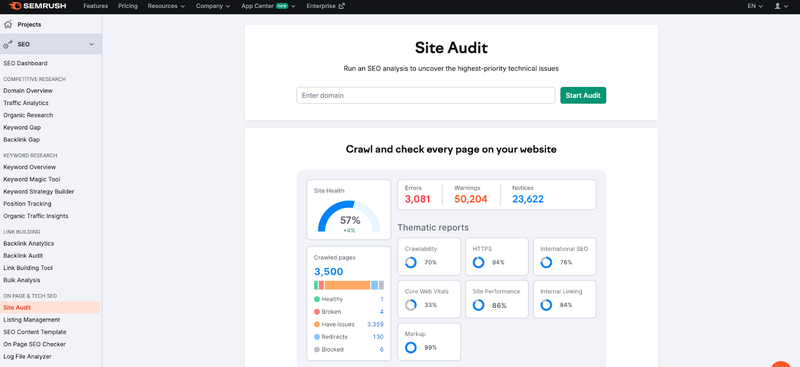
First, you need to run the site audit to begin. Follow these steps:
Step 1: Enter your website URL
Log into your Semrush account and navigate to the Site Audit tool. Enter your website URL and click “Start Audit.”
Step 2: Configure Your Audit Settings
Next, you’ll be asked to configure your website audit settings. This includes the crawl scope, number of checked pages, and crawl source.
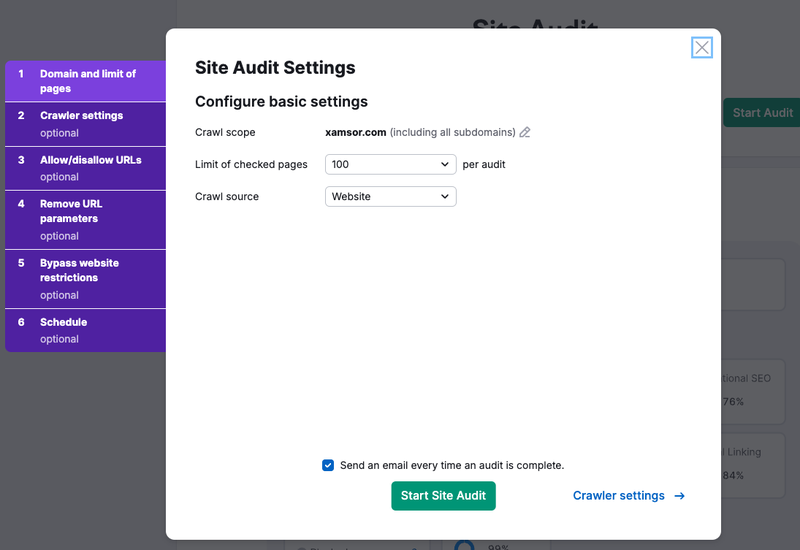
You can also adjust the settings to include allowed and disallowed URLs, remove URL parameters, and bypass website restrictions.
Step 3: Find the Internal Linking Report
Once the audit is complete, you can find the Internal Linking report under “Thematic Reports.”
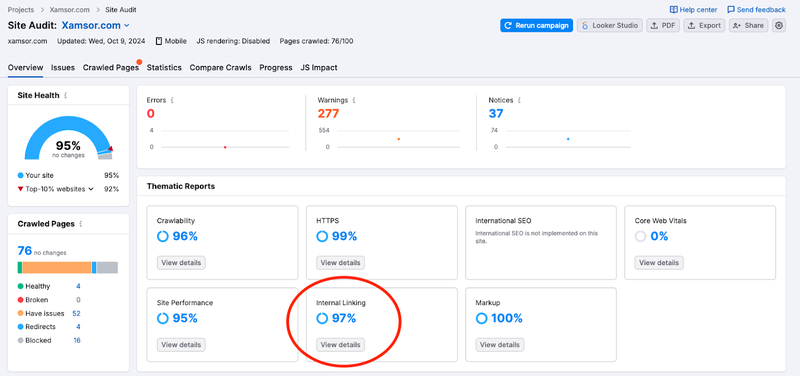
The Internal Linking report includes some notable data points (other than broken links) that help determine what pages link to a page and whether your current link structure is performing as it should.
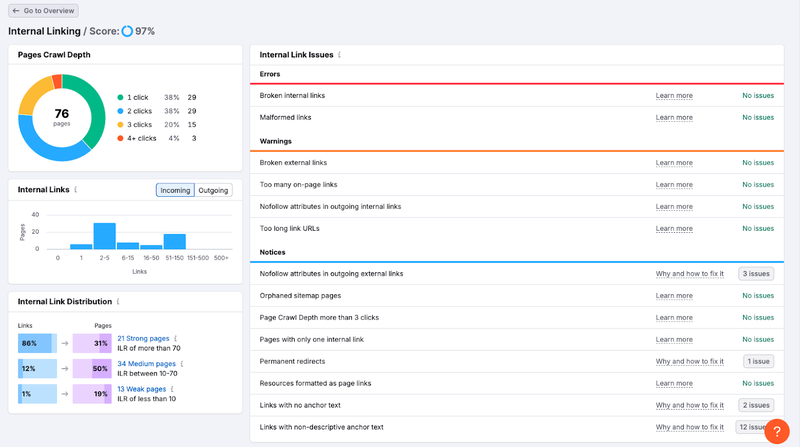
This includes:
- Pages Crawl Depth: This shows how many clicks it takes to reach each page from your homepage. Ideally, important pages should be within three clicks.
- Internal Links Distribution: This graph illustrates how internal links are distributed across your site, categorizing pages from strongest to weakest based on authority.
- Internal Link Issues: This section highlights specific problems with your internal links, such as broken links or pages with too many links.
- Pages Passing Most Internal LinkRank: Identifies your strongest pages in terms of internal authority. You can use this to boost other pages.
You can also use Semrush to find backlinks. The Backlink Analytics tool is your primary resource for backlink research.
Navigate to “Backlink Analytics” under the “Link Building” section.
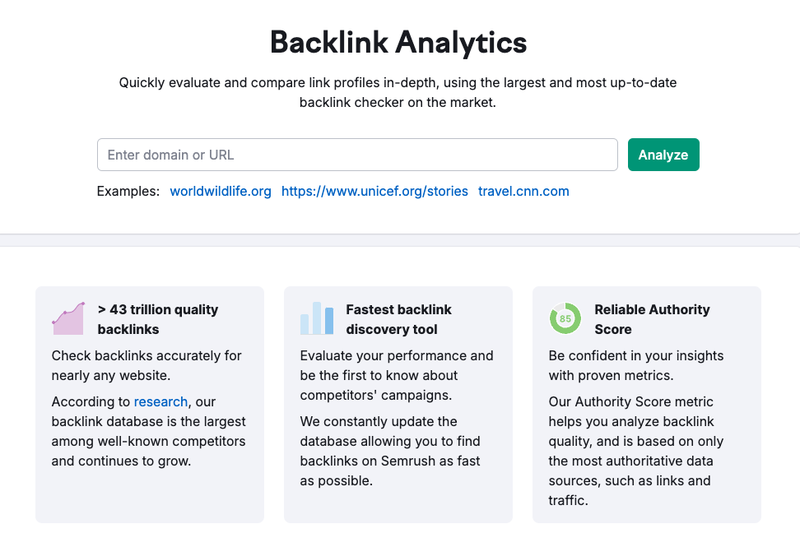
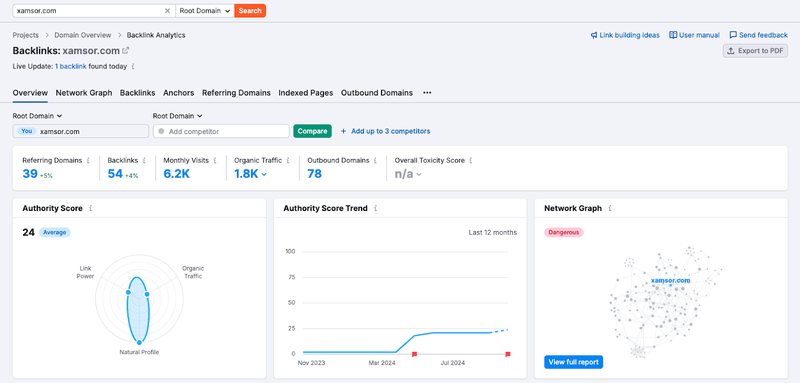
Enter your domain (or a competitor’s) and click “Analyze.” You’ll see an overview dashboard with key metrics like:
- Total backlinks
- Referring domains
- Authority Score
- Follow vs. nofollow link ratio
Click the “Backlinks” tab to see a detailed list of individual backlinks.
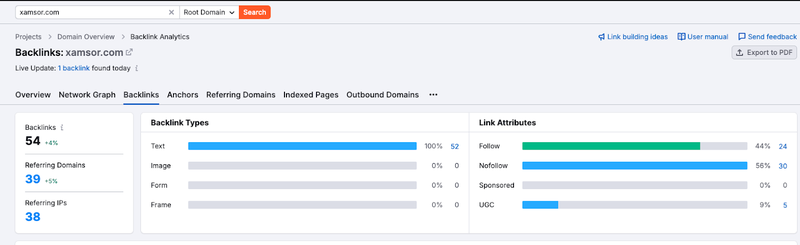
Here you can:
- View the source URL and target URL for each link
- Check the Authority Score of linking domains
- See the anchor text used for each link
- Filter links by type (text, image, form, etc.)
- Sort by various metrics to identify the most valuable links
Semrush can be leveraged as a complete link-building tool thanks to the Backlink Gap Tool. It can compare your backlink profile against up to four competitors.
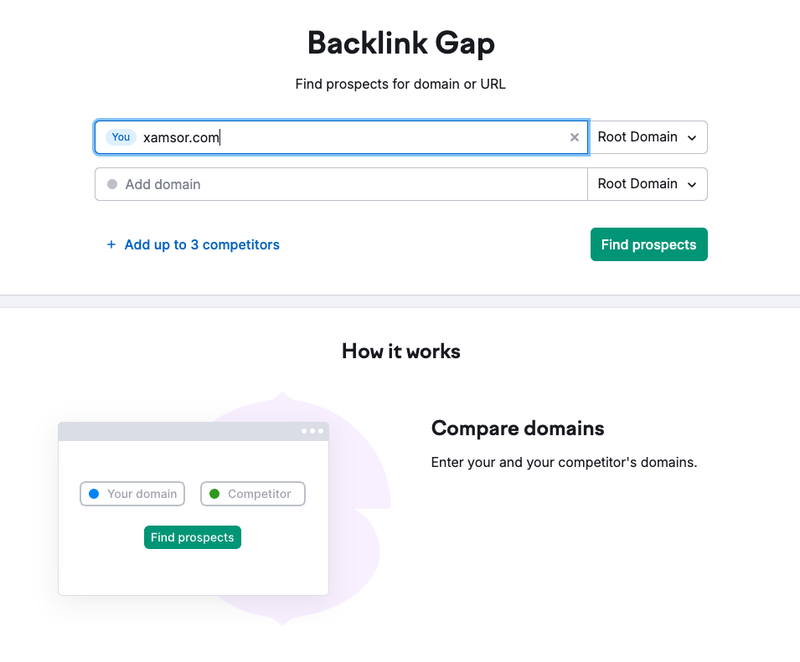
Enter your domain and up to four competitors. Click “Find prospects.” You’ll see a visual comparison of backlink profiles, highlighting:
- Unique links your competitors have that you don’t
- Shared backlinks across domains
- Opportunities for new link acquisitions
The downside of Semrush is its high price tag, and its data tends to be slightly less reliable than that of tools like Google Search Console that integrate with your website’s backend.
But overall, it’s highly intuitive for finding links and spotting new link opportunities.
#4. Use Manual Methods
If fancy software isn’t your style, you can opt for manual methods to find what pages link to a page (or a site). he first is to use the Google Search operator commend “link:” in a Google search. Here’s how it works:
Open Google search in your browser.
In the search bar, type “link:” followed immediately by the full URL of the page you want to check, without any spaces. For example: link:https://xamsor.com/
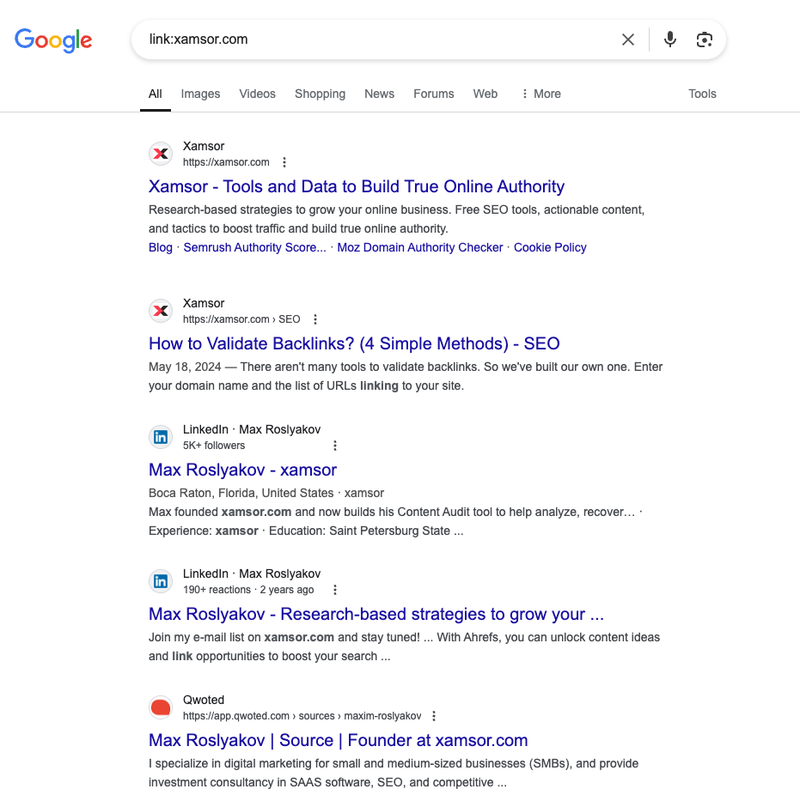
However, you’ll notice the results are not overly comprehensive. This is more of a quick method to get some general insights because Google only shows a small sample of your site’s actual backlinks.
For example, nofollow links and links from low-quality or penalized pages are included in these results. I’ve also noticed that there is no way to extract additional details like anchor text or link context.
Another manual method to quickly find links is inspecting the page source.
Right-click anywhere on the page and select “View Page Source” from the context menu. This will open a new tab or window showing the page’s HTML code.

In the source code view, use the search function by pressing Ctrl+F (Windows) or Cmd+F (Mac) to open the search bar.
Enter the URL or part of the URL you’re looking for in the search bar. If you’re searching for links to your homepage, you can enter your primary domain name.
Press Enter to search. The browser will highlight all instances of that URL in the source code. Look for the highlighted sections within <a href=”…”> tags. These are the internal links you’re searching for.
Repeat the search with variations of the URL (with and without “www” or “https:// “) to catch all link mentions.
While these methods can work, they’re less effective, and you’ll spend much more time trying to find links than using a free or paid tool we’ve already mentioned.
Conclusion
By utilizing tools like Google Search Console, Screaming Frog, and Semrush, as well as conventional methods, you can gain valuable insights into your site’s linking structure.
Regularly analyzing backlinks and internal links improves SEO performance and guides your content strategy for better user engagement and search engine rankings.
Have something to say? Join the discussion on LinkedIn or subscribe to stay tuned:

Max Roslyakov
Founder, Xamsor